Resale Marketplace App Screenshot Template — Second Life
Create a coordinated screenshot campaign for a resale marketplace app: cream and teal with lively apricot accents, editable circular arrows and listing tag shape, and five layouts for browse, listing, create listing, messages and order status.
- 5 slides · 5 screenshot slots · 4 photo slots
- Editable headlines, descriptions, background and 3 SVG decoration types
- Verified: iPhone 6.9″ portrait master (1320 × 2868 px).
- No account needed — opens in your browser; nothing is uploaded.
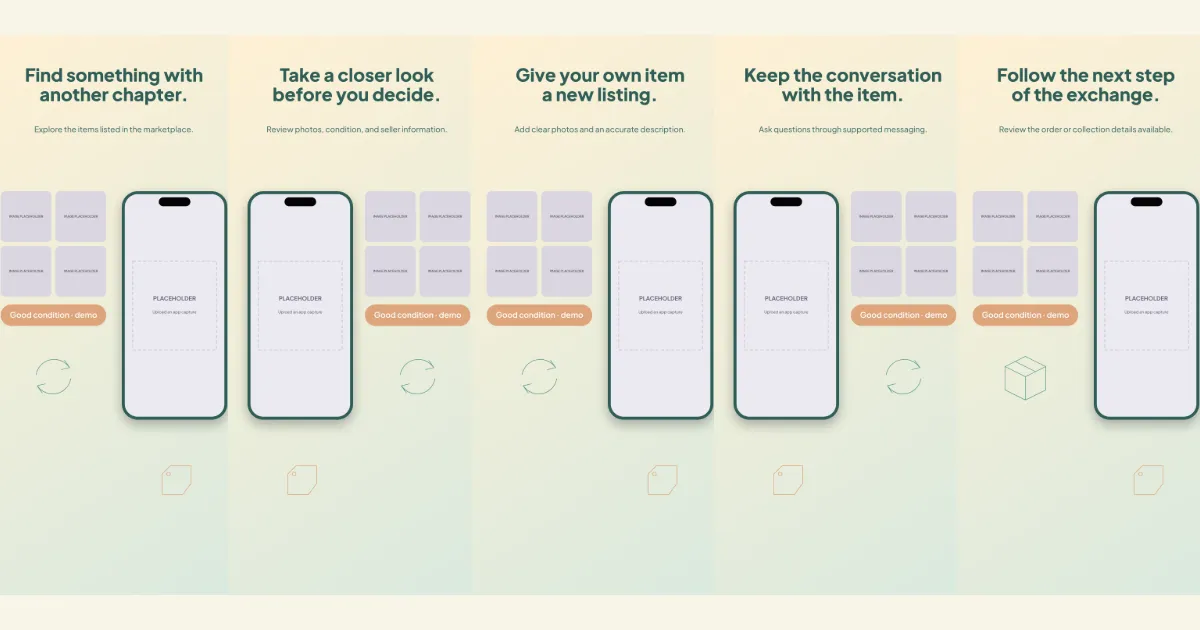
All five slides, in order
Swipe or use the slide links
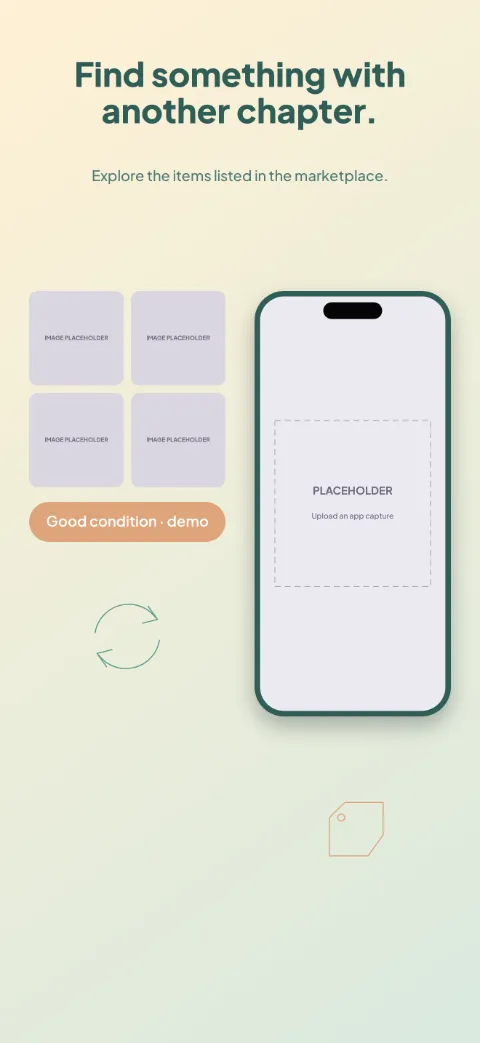
1 · Promise
Find something with another chapter.
Explore the items listed in the marketplace.
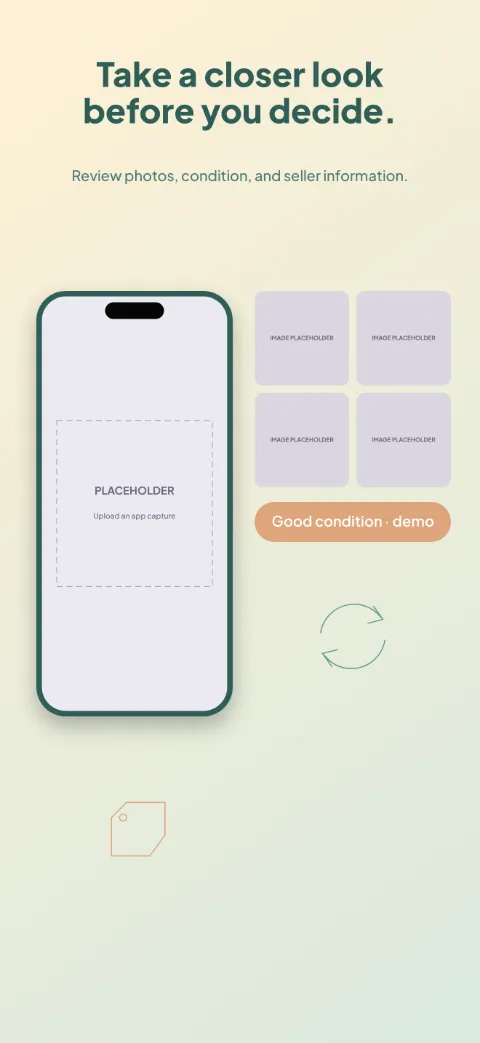
2 · Primary feature
Take a closer look before you decide.
Review photos, condition, and seller information.
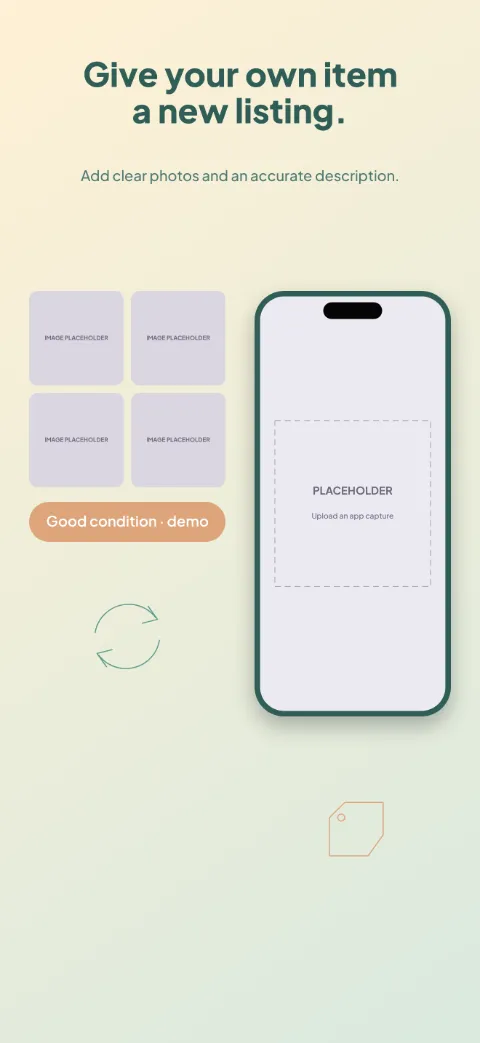
3 · Secondary feature
Give your own item a new listing.
Add clear photos and an accurate description.
4 · Personalisation
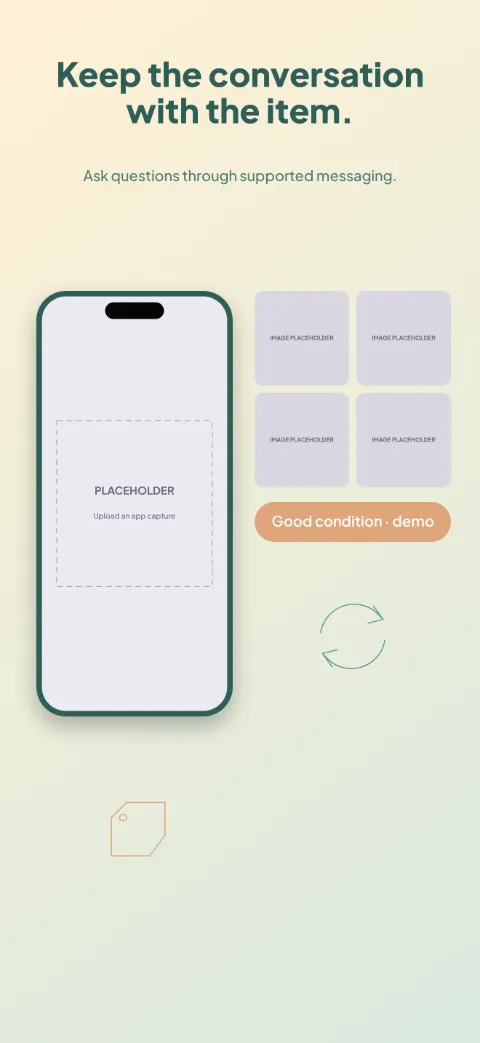
Keep the conversation with the item.
Ask questions through supported messaging.
5 · Closing
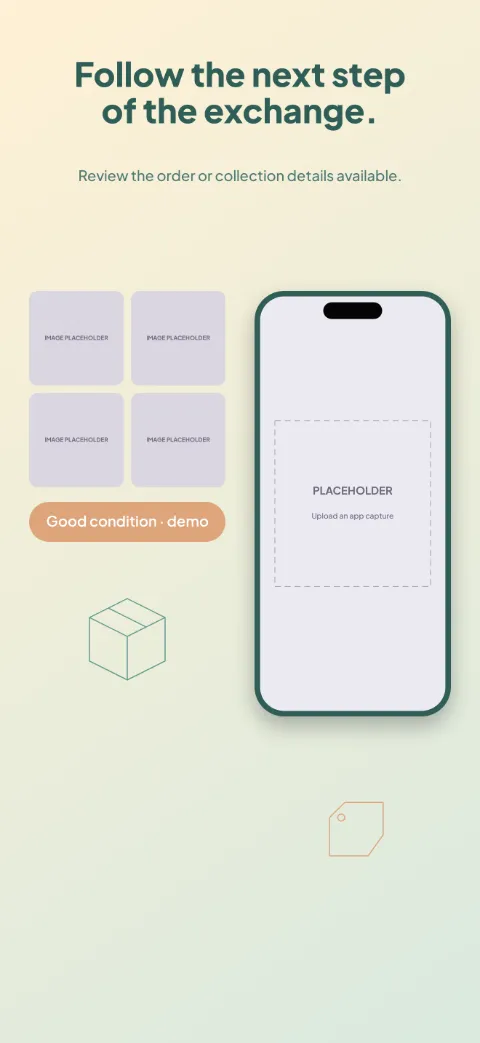
Follow the next step of the exchange.
Review the order or collection details available.
The story the slides tell
Listing grid of product photo slots with tags beside the phone, circular arrows for reuse and a parcel outline; prices are demo.
- Slide one — promise: shows browse with a photo slot, decorated with circular arrows and listing tag shape. Example copy: “Find something with another chapter.” / “Explore the items listed in the marketplace.”
- Slide two — primary feature: shows listing with a photo slot, decorated with circular arrows and listing tag shape. Example copy: “Take a closer look before you decide.” / “Review photos, condition, and seller information.”
- Slide three — secondary feature: shows create listing with a photo slot, decorated with circular arrows and listing tag shape. Example copy: “Give your own item a new listing.” / “Add clear photos and an accurate description.”
- Slide four — personalisation: shows messages with a photo slot, decorated with circular arrows and listing tag shape. Example copy: “Keep the conversation with the item.” / “Ask questions through supported messaging.”
- Slide five — closing: shows order status with a photo slot, decorated with parcel outline and listing tag shape. Example copy: “Follow the next step of the exchange.” / “Review the order or collection details available.”
How to use Second Life
- Open the template in Screenshot Studio. “Use this template” opens a new-project dialog in your browser; nothing is saved until you choose Create.
- Upload and map your app screenshots. Slots are named Browse, Listing, Create listing, Messages, Order status.
- Edit the headlines and supporting descriptions. Click any text on the canvas or use the copy table for every language.
- Apply your colours, fonts and target sizes. Brand kits and per-size adjustments keep the master layout intact.
- Preview, validate and export. Validation flags empty slots, overflowing text and missing fonts before the PNG export.
Advice for this template
- Use a browse screen for slide one, a listing screen for slide two, a create listing screen for slide three, then messages and order status screens for slides four and five.
- Photo slots (listing item 1 (your own), listing item 2 (your own), listing item 3 (your own) and listing item 4 (your own)) are empty: add your own or licensed images. No stock photography is bundled.
Questions
- Which app screens work best in this template?
- In order: browse, listing, create listing, messages and order status. Each slide has a named screenshot slot so captures map by position.
- Can I replace the device frame?
- Yes. Each screenshot slot can switch between the generic drawn frame styles (including frameless cards). Realistic manufacturer device artwork is not bundled.
- Can I change the gradient colors?
- Yes. The background is an ordinary editable gradient; the template also offers a matching solid colour and an alternate light/dark treatment.
- Can I use this design for both platforms?
- Yes. Projects can target App Store and Google Play sizes together. The master layout is 1320 × 2868; other sizes are resized proportionally, and you can adjust any size individually.
- Which parts remain editable?
- Every headline and description, screenshot slot, background and SVG decoration is an ordinary named layer you can edit, recolour, move, hide or delete.
Related templates
Start from Second Life
Opens a new project in your browser with all five slides editable. Your existing projects are not changed.
Use this template