Shopping App Screenshot Template — Wardrobe Edit
Create a coordinated screenshot campaign for a shopping app: black, blush and ivory, editable editorial rules and oval frame, and five layouts for wardrobe, item detail, outfit builder, calendar and collections.
- 5 slides · 5 screenshot slots · 1 photo slot
- Editable headlines, descriptions, background and 3 SVG decoration types
- Verified: iPhone 6.9″ portrait master (1320 × 2868 px).
- No account needed — opens in your browser; nothing is uploaded.
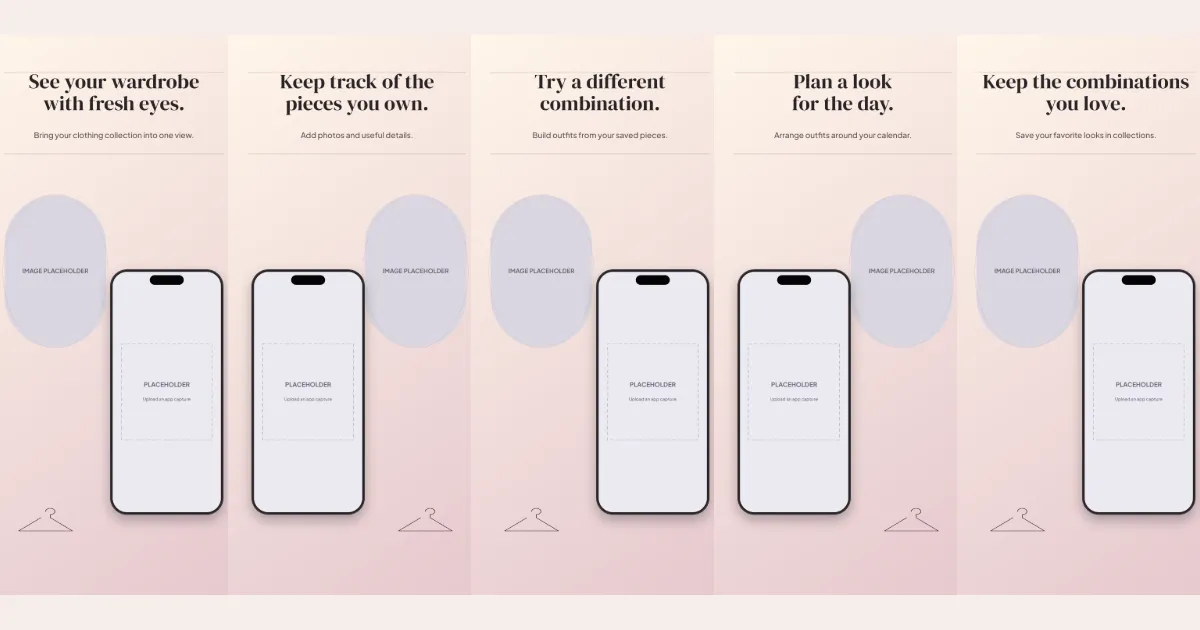
All five slides, in order
Swipe or use the slide links
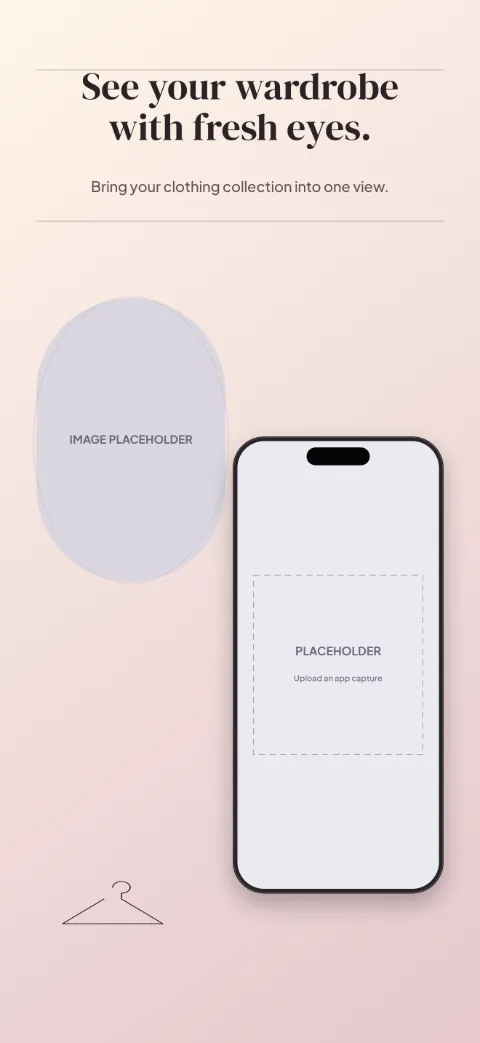
1 · Promise
See your wardrobe with fresh eyes.
Bring your clothing collection into one view.
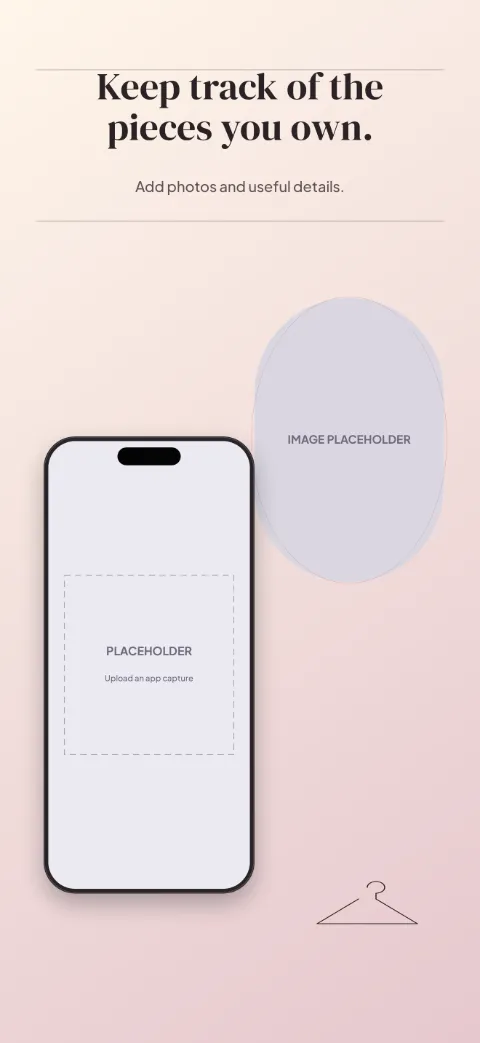
2 · Primary feature
Keep track of the pieces you own.
Add photos and useful details.
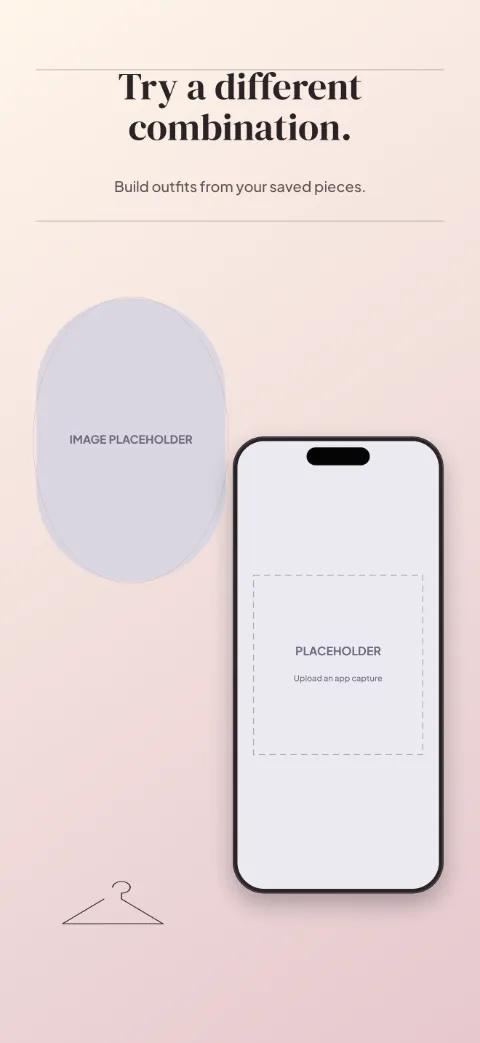
3 · Secondary feature
Try a different combination.
Build outfits from your saved pieces.
4 · Personalisation
Plan a look for the day.
Arrange outfits around your calendar.
5 · Closing
Keep the combinations you love.
Save your favorite looks in collections.
The story the slides tell
Airy editorial (L12): oval photo frame, thin rules and serif headlines; fine hanger outlines, lots of white space.
- Slide one — promise: shows wardrobe with a photo slot, decorated with editorial rules and oval frame. Example copy: “See your wardrobe with fresh eyes.” / “Bring your clothing collection into one view.”
- Slide two — primary feature: shows item detail with a photo slot, decorated with editorial rules and oval frame. Example copy: “Keep track of the pieces you own.” / “Add photos and useful details.”
- Slide three — secondary feature: shows outfit builder with a photo slot, decorated with editorial rules and oval frame. Example copy: “Try a different combination.” / “Build outfits from your saved pieces.”
- Slide four — personalisation: shows calendar with a photo slot, decorated with editorial rules and oval frame. Example copy: “Plan a look for the day.” / “Arrange outfits around your calendar.”
- Slide five — closing: shows collections with a photo slot, decorated with editorial rules and oval frame. Example copy: “Keep the combinations you love.” / “Save your favorite looks in collections.”
How to use Wardrobe Edit
- Open the template in Screenshot Studio. “Use this template” opens a new-project dialog in your browser; nothing is saved until you choose Create.
- Upload and map your app screenshots. Slots are named Wardrobe, Item detail, Outfit builder, Calendar, Collections.
- Edit the headlines and supporting descriptions. Click any text on the canvas or use the copy table for every language.
- Apply your colours, fonts and target sizes. Brand kits and per-size adjustments keep the master layout intact.
- Preview, validate and export. Validation flags empty slots, overflowing text and missing fonts before the PNG export.
Advice for this template
- Use a wardrobe screen for slide one, a item detail screen for slide two, a outfit builder screen for slide three, then calendar and collections screens for slides four and five.
- 1 slot is a zoomed close-up; supply a separate capture (or the same one, then pan the crop) so the detail stays sharp.
- Photo slots (fashion editorial (your own or licensed)) are empty: add your own or licensed images. No stock photography is bundled.
Questions
- Which app screens work best in this template?
- In order: wardrobe, item detail, outfit builder, calendar and collections. Each slide has a named screenshot slot so captures map by position.
- Can I replace the device frame?
- Yes. Each screenshot slot can switch between the generic drawn frame styles (including frameless cards). Realistic manufacturer device artwork is not bundled.
- Can I change the gradient colors?
- Yes. The background is an ordinary editable gradient; the template also offers a matching solid colour and an alternate light/dark treatment.
- Can I use this design for both platforms?
- Yes. Projects can target App Store and Google Play sizes together. The master layout is 1320 × 2868; other sizes are resized proportionally, and you can adjust any size individually.
- Which parts remain editable?
- Every headline and description, screenshot slot, background and SVG decoration is an ordinary named layer you can edit, recolour, move, hide or delete.
Related templates
Collector's Cabinet
Collection Catalog · Editorial
Also lifestyle & shopping, editorial style
Paper Days
Lifestyle · Editorial
Also lifestyle & shopping, editorial style
Appointment Edit
Salon Booking · Editorial
Also lifestyle & shopping, editorial style
News Perspective
News RSS · Editorial
Also lifestyle & shopping, editorial style
Start from Wardrobe Edit
Opens a new project in your browser with all five slides editable. Your existing projects are not changed.
Use this template