Wellness App Screenshot Template — Your Own Voice
Create a coordinated screenshot campaign for a wellness app: rose-lilac, sound waves, a large crop of the recorder with a small full phone, editable waveform ribbon and sound rings, and five layouts for affirmation list, recorder, editor, player and schedule.
- 5 slides · 10 screenshot slots
- Editable headlines, descriptions, background and 3 SVG decoration types
- Verified: iPhone 6.9″ portrait master (1320 × 2868 px).
- No account needed — opens in your browser; nothing is uploaded.
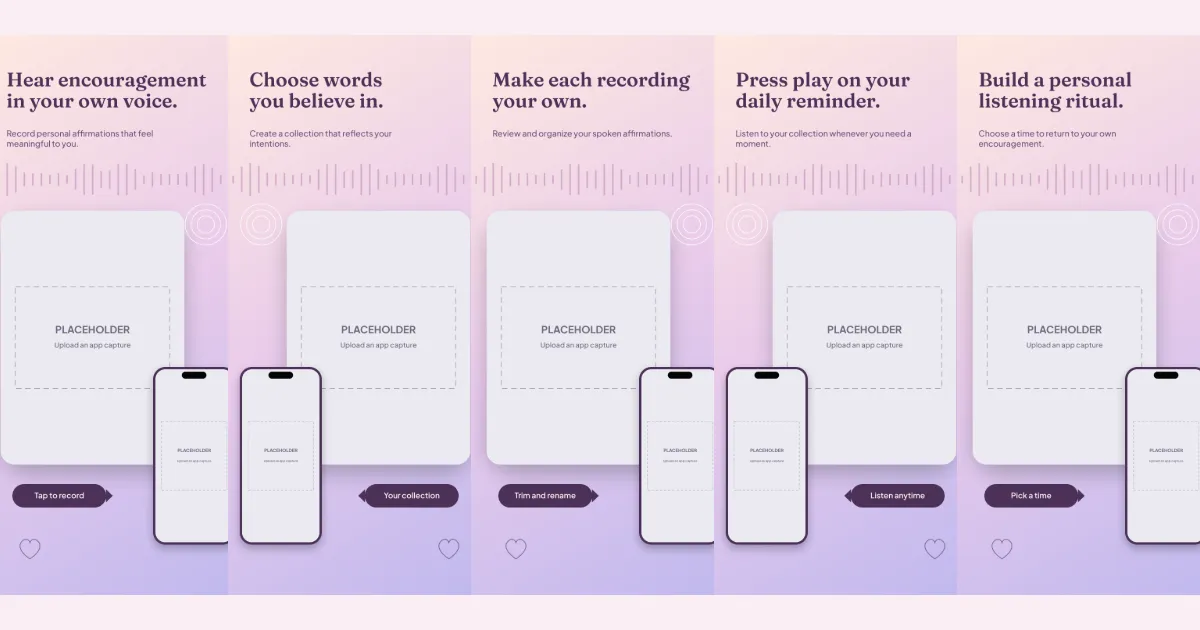
All five slides, in order
Swipe or use the slide links
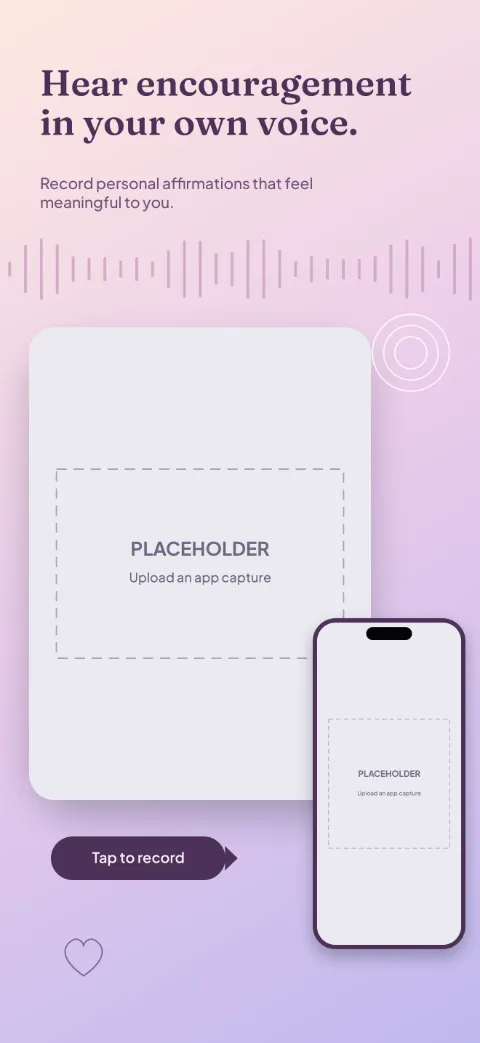
1 · Promise
Hear encouragement in your own voice.
Record personal affirmations that feel meaningful to you.
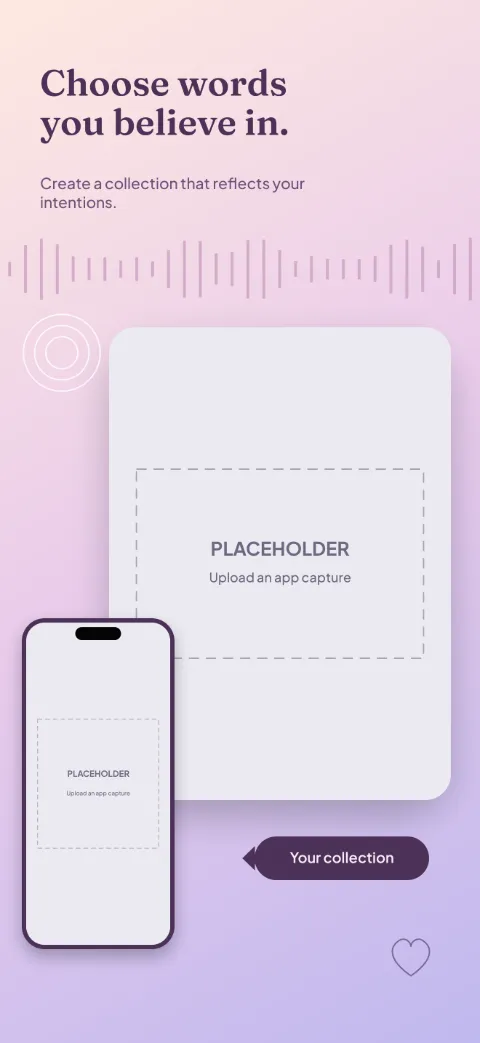
2 · Primary feature
Choose words you believe in.
Create a collection that reflects your intentions.
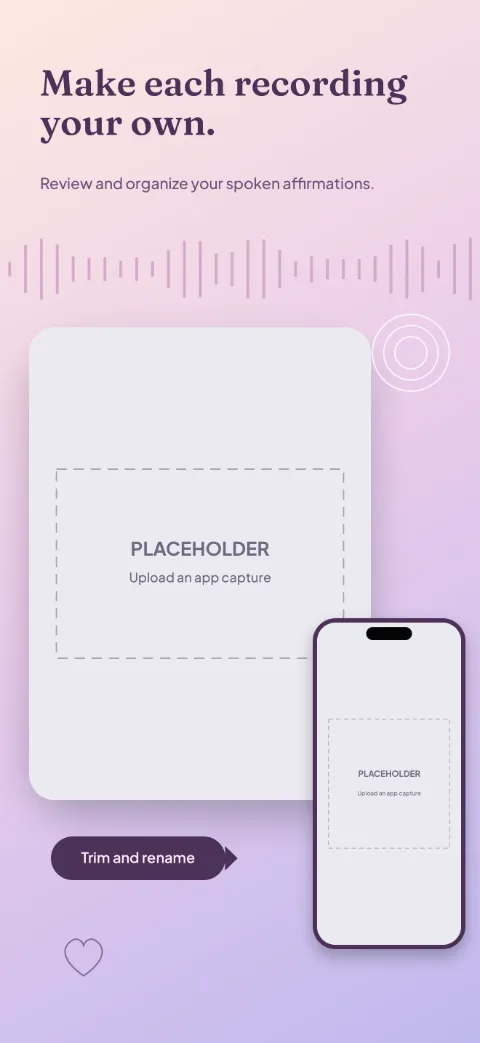
3 · Secondary feature
Make each recording your own.
Review and organize your spoken affirmations.
4 · Personalisation
Press play on your daily reminder.
Listen to your collection whenever you need a moment.
5 · Closing
Build a personal listening ritual.
Choose a time to return to your own encouragement.
The story the slides tell
Feature spotlight (L4): an enlarged screen crop shows one control, a smaller full phone gives context, one callout.
- Slide one — promise: shows affirmation list (crop) + affirmation list, decorated with waveform ribbon and sound rings. Example copy: “Hear encouragement in your own voice.” / “Record personal affirmations that feel meaningful to you.”
- Slide two — primary feature: shows recorder (crop) + recorder, decorated with waveform ribbon and sound rings. Example copy: “Choose words you believe in.” / “Create a collection that reflects your intentions.”
- Slide three — secondary feature: shows editor (crop) + editor, decorated with waveform ribbon and sound rings. Example copy: “Make each recording your own.” / “Review and organize your spoken affirmations.”
- Slide four — personalisation: shows player (crop) + player, decorated with waveform ribbon and sound rings. Example copy: “Press play on your daily reminder.” / “Listen to your collection whenever you need a moment.”
- Slide five — closing: shows schedule (crop) + schedule, decorated with waveform ribbon and sound rings. Example copy: “Build a personal listening ritual.” / “Choose a time to return to your own encouragement.”
How to use Your Own Voice
- Open the template in Screenshot Studio. “Use this template” opens a new-project dialog in your browser; nothing is saved until you choose Create.
- Upload and map your app screenshots. Slots are named Affirmation list, Recorder, Editor, Player, Schedule.
- Edit the headlines and supporting descriptions. Click any text on the canvas or use the copy table for every language.
- Apply your colours, fonts and target sizes. Brand kits and per-size adjustments keep the master layout intact.
- Preview, validate and export. Validation flags empty slots, overflowing text and missing fonts before the PNG export.
Advice for this template
- Use a affirmation list screen for slide one, a recorder screen for slide two, a editor screen for slide three, then player and schedule screens for slides four and five.
- 5 slots are zoomed close-ups; supply a separate capture (or the same one, then pan the crop) so the detail stays sharp.
Questions
- Which app screens work best in this template?
- In order: affirmation list, recorder, editor, player and schedule. Each slide has a named screenshot slot so captures map by position.
- Can I replace the device frame?
- Yes. Each screenshot slot can switch between the generic drawn frame styles (including frameless cards). Realistic manufacturer device artwork is not bundled.
- Can I change the gradient colors?
- Yes. The background is an ordinary editable gradient; the template also offers a matching solid colour and an alternate light/dark treatment.
- Can I use this design for both platforms?
- Yes. Projects can target App Store and Google Play sizes together. The master layout is 1320 × 2868; other sizes are resized proportionally, and you can adjust any size individually.
- Which parts remain editable?
- Every headline and description, screenshot slot, background and SVG decoration is an ordinary named layer you can edit, recolour, move, hide or delete.
Related templates
Start from Your Own Voice
Opens a new project in your browser with all five slides editable. Your existing projects are not changed.
Use this template